Deploying GitHub Self-Hosted Runners on Your Home Kubernetes Cluster with ARC
Updated · originally #kubernetes#home-lab#github-actions#ci-cd5 min read
If you followed my last post, Building a Home Lab Kubernetes Cluster with Old Hardware and k3s, you now have a proper x86 Kubernetes cluster humming away on your old laptops. So, what’s next? Time to put that cluster to work - let’s run GitHub Actions jobs on your own hardware!
GitHub’s Actions Runner Controller (ARC) creates ephemeral self-hosted runners as Kubernetes pods and scales them with the workflow queue. Self-hosting gives you control over the hardware, network, and installed tools. It also avoids consuming GitHub-hosted runner minutes, although GitHub plan and concurrency limits still apply and you operate the machines yourself.
Here’s how to set it all up.
What is ARC and Why Should You Care?
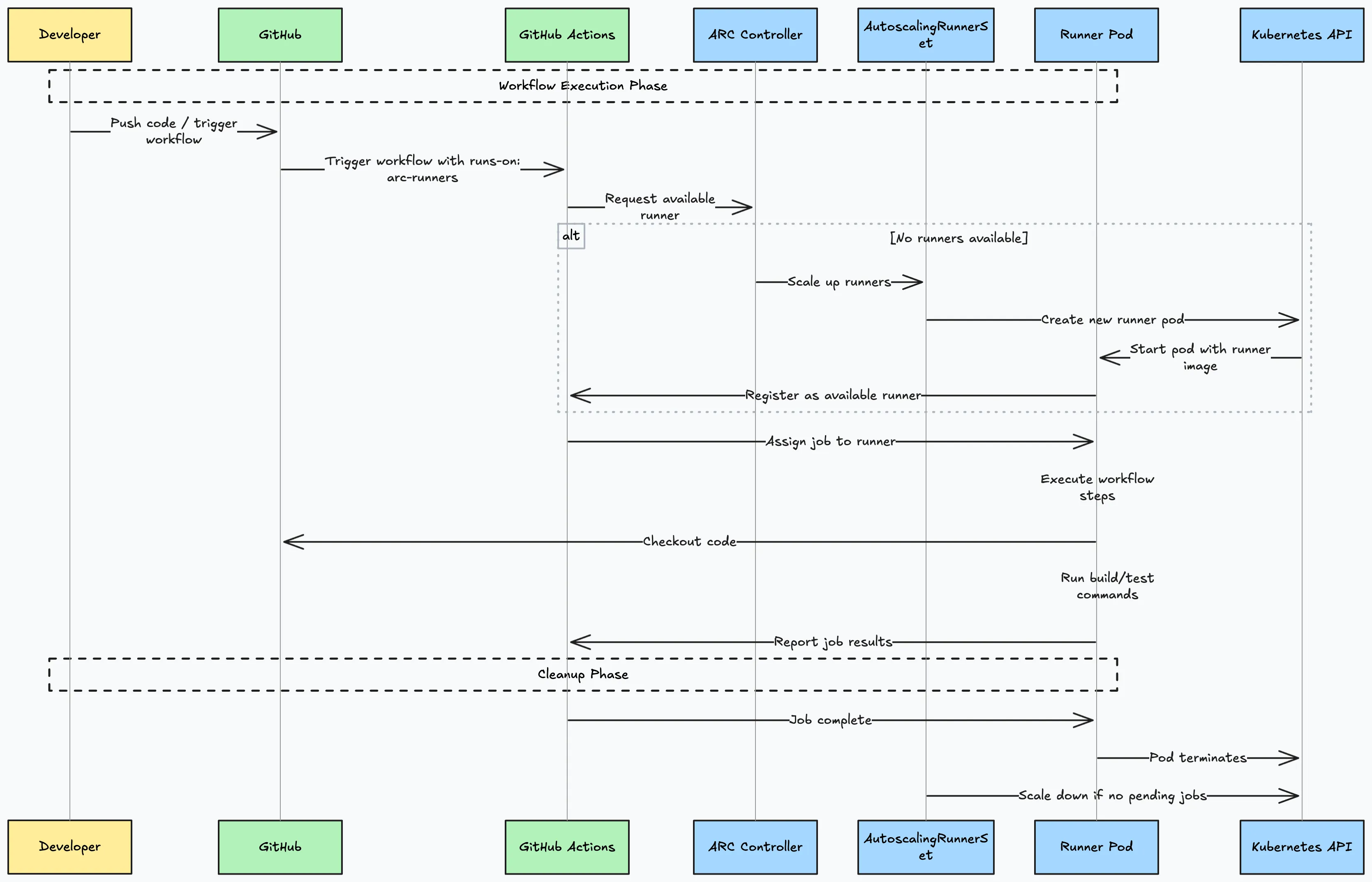
ARC (Actions Runner Controller) is an open-source Kubernetes operator from GitHub. It creates and manages GitHub Actions runners as Kubernetes pods - no more manually registering long-lived runners. With runner scale sets, pods scale up as jobs arrive and terminate when the work is complete.
Here’s a high level view of how it works under the hood
Prerequisites
- Working Kubernetes cluster (see previous post)
kubectlandhelminstalled on your machine- GitHub authentication for the repository or organisation. GitHub recommends a GitHub App for long-lived repository or organisation installations; a classic PAT also works when it has the permissions required by your chosen scope.
These runners execute repository workflow code on your network. Keep the runner namespace away from production workloads and sensitive home services, and do not give runner pods broader Kubernetes permissions than they need.
1️⃣ Pre-Setup: Quick Checks
Make sure you have what you need:
which helm
kubectl version --client
helm list -A
If those commands work, you’re good to go.
2️⃣ Install ARC Controller
Let’s install the ARC controller into your control plane namespace:
NAMESPACE="actions-runner-controller"
helm install arc \
  --namespace "${NAMESPACE}" \
  --create-namespace \
  oci://ghcr.io/actions/actions-runner-controller-charts/gha-runner-scale-set-controller
This deploys the controller which manages your runners.
3️⃣ Deploy a Runner Scale Set
Time to create the runners that will actually do the work. This example stores the PAT in a Kubernetes secret first, so the token does not appear in the Helm command or its release values. Replace the example GitHub URL with your repository or organisation URL:
INSTALLATION_NAME="arc-runner-set"
NAMESPACE="arc-runners"
GITHUB_CONFIG_URL="https://github.com/youruser/yourrepo"
SECRET_NAME="arc-github-secret"

kubectl create namespace "${NAMESPACE}"

read -rsp "GitHub PAT: " GITHUB_PAT
echo
kubectl create secret generic "${SECRET_NAME}" \
  --namespace="${NAMESPACE}" \
  --from-literal=github_token="${GITHUB_PAT}"
unset GITHUB_PAT

helm install "${INSTALLATION_NAME}" \
  --namespace "${NAMESPACE}" \
  --set githubConfigUrl="${GITHUB_CONFIG_URL}" \
  --set githubConfigSecret="${SECRET_NAME}" \
oci://ghcr.io/actions/actions-runner-controller-charts/gha-runner-scale-setGITHUB_CONFIG_URL: The repo or org you want to run jobs for.INSTALLATION_NAME: The runner scale set name that workflows use inruns-on.SECRET_NAME: The existing Kubernetes secret ARC reads for GitHub authentication.
If the namespace already exists, skip the kubectl create namespace command. For a permanent repository or organisation installation, consider replacing the PAT with a GitHub App so you can use short-lived installation tokens and narrower permissions.
4️⃣ Check That It’s Working
Verify the controller and runner pods are up:
# Controller
kubectl get pods -n actions-runner-controller

# Runners
kubectl get pods -n arc-runners

# Runner set status
kubectl get AutoscalingRunnerSet -A
kubectl describe AutoscalingRunnerSet arc-runner-set -n arc-runners
You should see your runners show up as pods. If you trigger a workflow in your GitHub repo, you’ll see a pod spin up, do the job, and then shut down - magic.
5️⃣ Testing It Out
Here’s the fun part. Create a simple GitHub Actions workflow in your repo to test the runners:
name: Test ARC Runners
on: [push]

permissions:
  contents: read

jobs:
  build:
    runs-on: arc-runner-set
    steps:
      - name: Checkout code
        uses: actions/checkout@v7

      - name: Run a script
        run: echo "Hello from ARC Runner!"
      - name: List files
        run: ls -la
The runs-on value must match INSTALLATION_NAME from step 3. It is the runner scale set name, not the Kubernetes namespace.
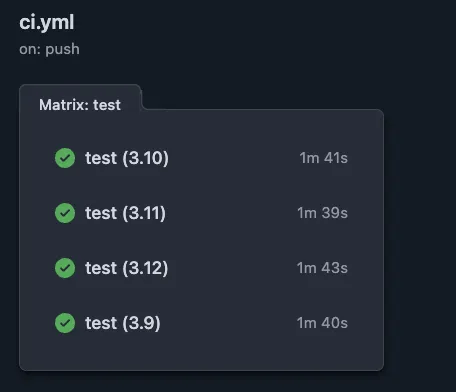
Here’s ci.yaml from my githubstats repo if you need a working example: ci.yaml
Make a commit to trigger the workflow. You should see the runner pod spin up, execute the job, and then terminate.
5️⃣ Monitoring (Bonus: Grafana)
Want to geek out and monitor your runners? If your cluster already runs Prometheus and Grafana, you can:
- Check pod CPU/memory usage
- Track how many runners are running
- See logs for each pod
Handy queries for Grafana dashboards:
# Number of ARC runner pods
kube_pod_status_phase{namespace="arc-runners", phase="Running"}

# Pod CPU usage
rate(container_cpu_usage_seconds_total{namespace="arc-runners"}[5m])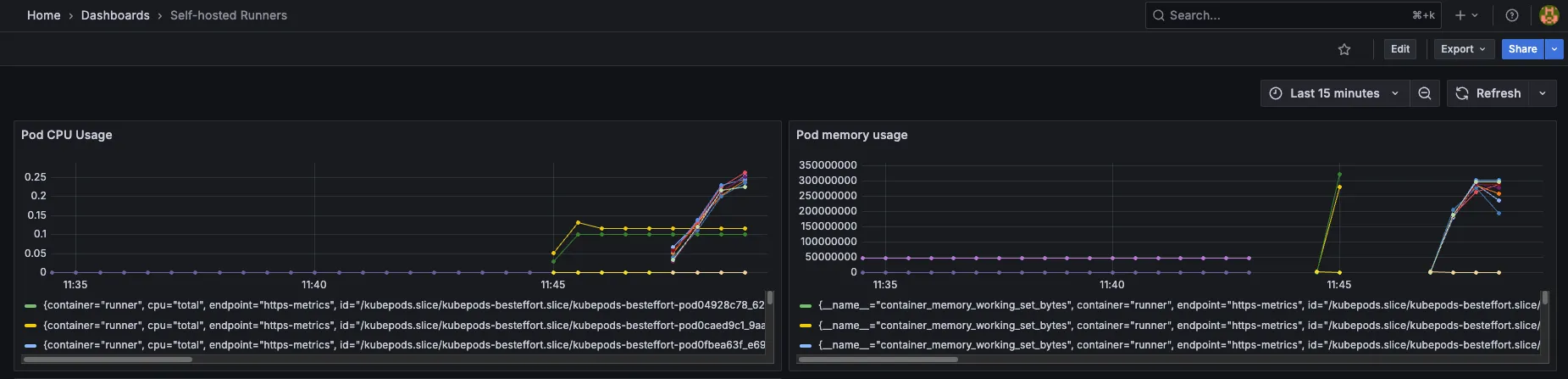
6️⃣ Useful Commands for Day-to-Day Ops
# Watch runner scaling in real-time
kubectl get AutoscalingRunnerSet -n arc-runners -w

# See events and troubleshoot
kubectl get events -n arc-runners --sort-by=.metadata.creationTimestamp

# Pod logs (for a specific runner)
kubectl logs -n arc-runners <pod-name>
Troubleshooting Tips
- Runner not connecting? Double-check the referenced Kubernetes secret and outbound network access.
- Pods stuck or crash-looping? Check logs for clues and make sure your cluster has enough resources.
- Can’t see runners in GitHub? Make sure the config URL matches your repo/org and the PAT has correct scopes.
That’s It! You’re Running GitHub Actions on Your Own Cluster
You now have GitHub Actions jobs running at home on your cluster, scaling up and down automatically. Your home lab just levelled up - CI/CD, builds, ML, you name it.
Happy automating!
Questions? Want to show off your setup? Ping me on X (Twitter) or drop a comment below!